
Webinar vs. Meeting
The classes and showcases you attend will either be a webinar format or a meeting format.
A WEBINAR is a view-only platform where the attendees cannot see each other, and the Host cannot see the attendees. The are more for demonstration type classes where attendees can participate on their own, by trying techniques, playing along, etc., or if they choose, to just listen and take it all in. Because a webinar is not interactive, we can allow a much larger attendance than in a meeting.
A standard MEETING is fully interactive and allows all participants the ability to see, speak, hear, and screen-share with each other. These are used for roundtable discussions and classes where heavy interaction is required. As such, they have a lower cap on attendance then a webinar.
Participating in a Webinar
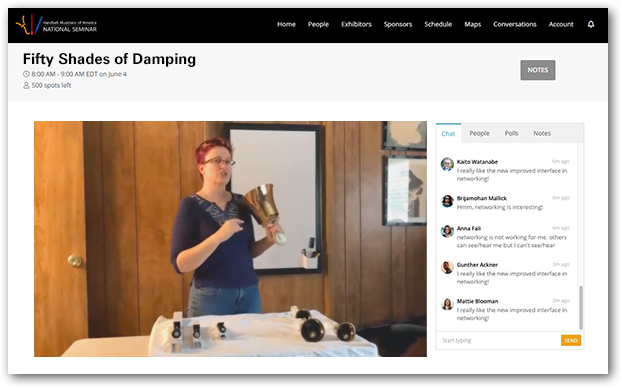
When you enter a Webinar, everything will take place within the Pathable browser window. You will see the speakers and any screen shares in the left panel, and tabs in the right panel to chat, see attendees, answer polls, and download class notes.
Since you will not be seen or heard, you will ask questions in the chat window. The host will watch the chat and field questions to the speaker on your behalf. Please do not use the Raise Hand feature as that will appear somewhere outside of the app window, and the host has been instructed to watch the chat window.
Participating in a Meeting
When you enter a meeting, you will be taken from the Pathable window in your browser into a standard Zoom room, where everyone will be able to share their video and audio. The app window will remain behind the Zoom window. Being able to see the chat window is not as important in a meeting format, since you will be able to ask questions via audio. If however, the speaker has instructed you to use the chat for questions, you can switch between windows using Alt Tab on Windows or Cmd Tab on Mac. (TIP: To better facilitate this, be sure to have only the browser window and the Zoom window open at a time, otherwise the key combination will cycle through all your open windows)
Alternatively, you can split your screen to show the Pathable and Zoom windows side by side. To do this, if your Zoom window is in full screen mode, exit full screen by clicking the button in the upper right. Then follow the instructions in one of the two videos below for either Windows or Mac.