
Entering a Class Session
Exploring the Agenda
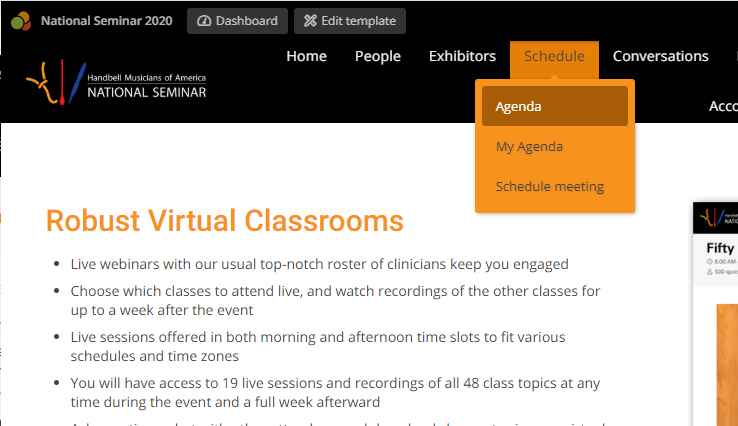
To find the agenda, click on SCHEDULES in the navigation menu. Then click on AGENDA, which will bring up the entire schedule, or MY AGENDA, which will bring up only the classes you have chosen.
Adding/Removing Classes
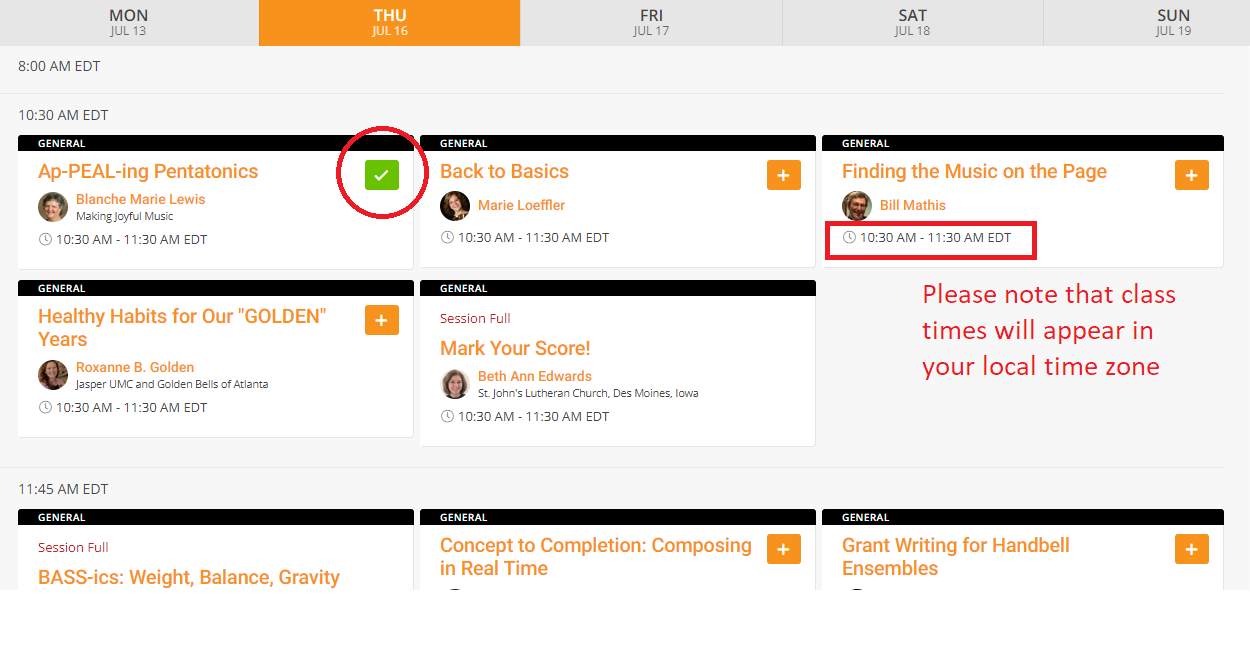
Any classes you are already signed up for will show a green check. If you would rather attend a different class in that session, you can remove yourself from the chosen class by clicking the green check. You can then add a different class during that session by clicking the gold plus.
Some meeting-style classes have limited capacity. If the session is full, that will be noted on the agenda.
 How to Join a Class
To attend a virtual meeting on the Pathable platform, we strongly recommend using Google Chrome or Microsoft Edge browsers. Due to limitations within Zoom, attendees in Safari, Firefox, or other browsers may have to dial in via telephone in order to hear the meeting audio. Telephone dial-in numbers are provided once you join the broadcast.
Alternatively, you can also start the broadcast, then click the link in the lower-left corner in order to open the meeting within the Zoom program.