
Adding Content to an Organization’s Page and Starting a Virtual Tradeshow Booth
Adding Content to Your Page:
Organizations have their own landing page within a Pathable app, with a number of customizable areas. You must be logged in to the Pathable app, and have appropriate permissions, set by the event host, to make edits to your page. If you need your login information, or are logged in but not able to edit, please contact the host of your event.
- Log in to the event app and locate your listing.
- Click the Manage button in the upper-right corner:
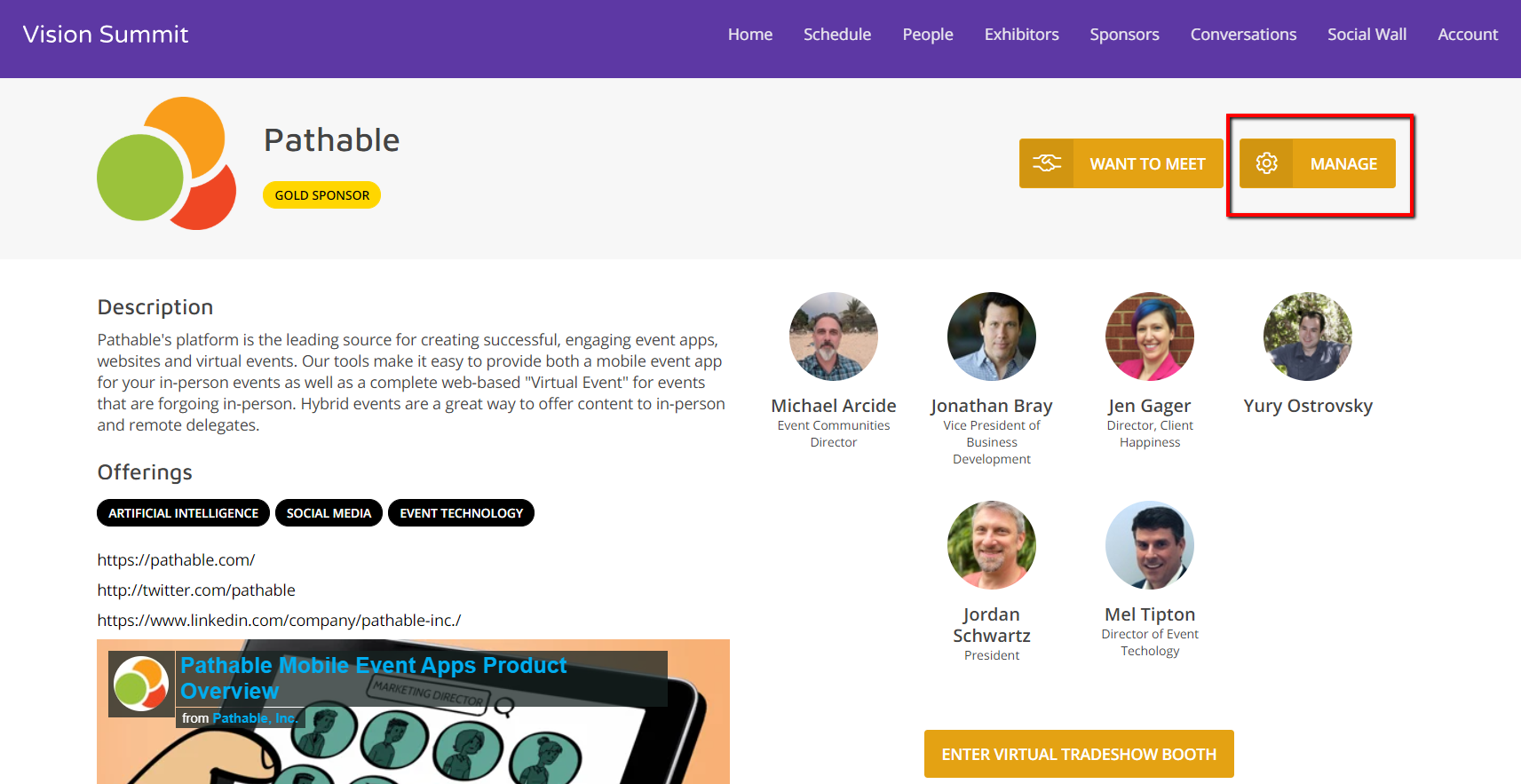
On the Manage menu, there are a number of tabs on the left:
- Basics allows you to edit the Organization’s details: Name, logo, Description, and any tags/keywords the host has provided
- Leads lists information about attendees who would like more information from you
- Visits lists information about attendees who have visited your page — please note that these are not inquires/ hard leads, and should not be treated as such
- Polls allows you to configure interactive polls for attendees – please see this article if you’d like more detail on polls: https://seminar.handbellmusicians.org/how-to-create-and-manage-polls/
- Files allows you to upload files (handouts, one-sheets, etc) that attendees can then download.
On the right, the “Manage your Team” area allows you to add/remove members to your team. Team members have management access. If the person you want to add is not available in the New Member drop-down, please contact the event host, since the person must be added to the app before they can be added to a team.
Starting a Virtual Tradeshow Booth:
Twenty minutes before the Tradeshow, is scheduled to begin:
- Select the “Enter Tradeshow Booth” button
- Select “Manage”
- Select “Join Meeting Now” to start the Tradeshow meeting as the host of this meeting. This meeting will open in the Zoom native client, so be sure you’ve downloaded that software before the event begins.
- Share your video, and wait for the attendees to arrive!
Tip! You can use the breakout-room feature of Zoom if you have a desire to have private discussions with attendees as they arrive – just make sure that at least one staff member is still in the main room to greet new attendees!
When the tradeshow is over, simply end the meeting by selecting “End” in the bottom-right corner of the Zoom window.